Learn Krack-AIin just a few minutes
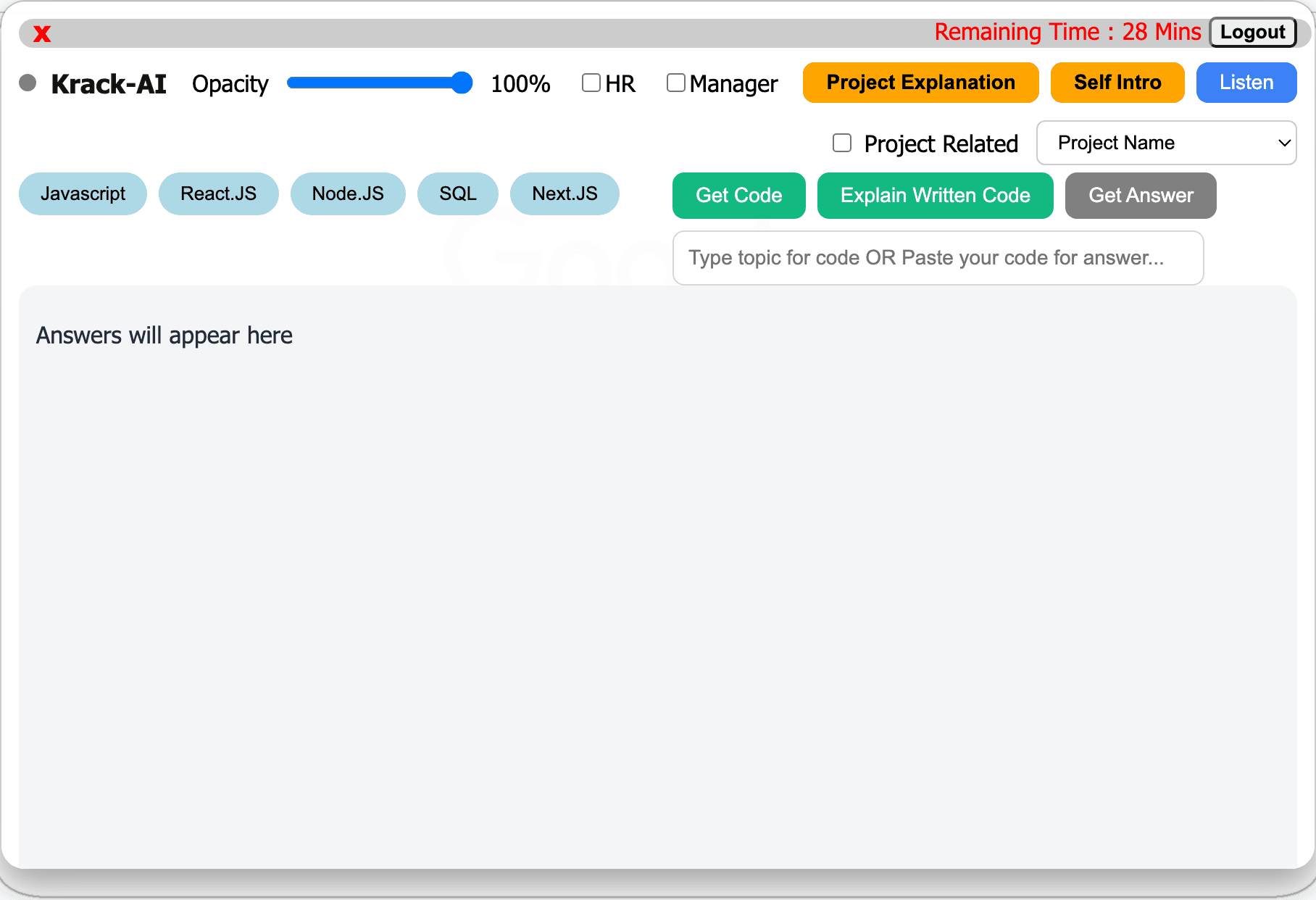
Explore the Krack-AI overlay interactively and learn how to use every feature during your interview.
Get started in four steps
Set up your interview workflow before the first question.
Choose Interview Type
Select HR or Manager to tailor your answers.
Select Project
Enable Project Related and select your project when needed.
Select Technology
Choose one or more technologies for coding questions.
Start Interview
Use Listen, Get Answer or Get Code depending on the question.
Everything you need during an interview
Quickly understand what each Krack-AI control does and when to use it.
Self Intro
Generate a professional introduction based on your experience and technology stack.
Project Explanation
Explain your selected project, role, responsibilities and technology stack.
Listen
Listen to the interviewer and generate an answer without manually typing the question.
HR / Manager
Tailor answers for HR, behavioral, leadership and managerial interview rounds.
Project Related
Generate answers specifically based on the project selected in the dropdown.
Get Code
Generate code for JavaScript, React, Node.js, SQL, Next.js and other selected technologies.
Explain Written Code
Paste code and get a line-by-line explanation of how it works.
Get Answer
Type or paste an interview question, meeting chat message or code and get a direct answer.
Automatic Code Typing
Use Ctrl + Shift + C on Windows or Cmd + Shift + C on Mac to type generated code automatically.
Opacity
Adjust the transparency of the Krack-AI overlay using the opacity slider.
Remaining Time
See your remaining interview-assistance time at the top of the overlay.
Use Krack-AI the right way
Pick the workflow that matches the question you're facing.
Technical Question
Coding Question
Project Question
Typed Question
Automatic Code Typing
Generated code can be automatically typed into your active code editor, helping you move from AI answer to implementation faster.
Windows
Mac
Stop
Ready to use Krack-AI?
Start the interactive tour or download Krack-AI and get familiar with the workflow before your next interview.